ALEXSOFT INSIGHTS
When does work managed in Excel or Google Sheets need a dedicated system?
Consider speed, permissions, change history, and business rules alongside row counts. A guide to when Excel or Google Sheets can stay, and when to consider a dedicated system.
In the previous article, I discussed why automating work does not always mean starting with a new application.
If Excel or Google Sheets is already working well, it may be better to keep it and automate only the repetitive transferring and organizing people do. That raises the opposite question.
How long can you keep using Excel or Google Sheets, and when should you build a dedicated business system?
In the past, this decision was often based on user counts or data volume: more people and bigger files meant it was time for a system. It is harder to make such a simple judgment today.
Cloud-based simultaneous editing is common, and simple automation is readily available. AI can now write formulas and automation scripts and analyze data. Work that would have called for a small application a few years ago can now remain in Excel or Google Sheets for quite a while.
Ultimately, the question is whether the work has outgrown what a spreadsheet can handle.
Excel and Google Sheets are more capable than you might think.
Excel and Google Sheets are excellent business tools.
You can create tables immediately without a development project. When the work changes, you can add columns or update formulas. Filters and statistics are easy to create, and multiple people can conveniently enter and check information at the same time.
When the workflow is simple and the data definitions are clear, a spreadsheet is a faster and much more flexible solution than a dedicated system.
That was true of an issue tracking process I worked with.
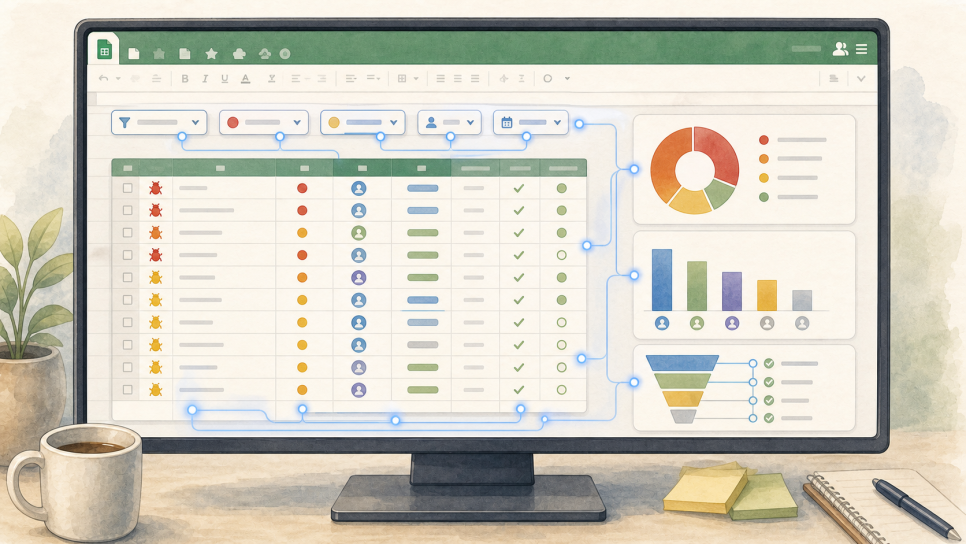
The team already had a Google spreadsheet they checked every day, and it handled issue registration and status tracking well. Adding processing flows, risk levels, defect scores for each person, other statistics, filters, and guidance required complex functions, formulas, and scripts. I was able to automate all of that by directing AI.
That was enough to meet the team’s needs. People did not have to learn a new application or find out where the latest information had moved.
In that situation, a new issue tracking application might have added another tool and more management responsibility instead of solving a problem. Using a spreadsheet is not itself the issue.
The problem is keeping work in a spreadsheet after it has become too difficult to handle there.
AI extends the useful life of spreadsheets.
AI has recently expanded the range of work spreadsheets can handle considerably.
Describe the task, and it can write a formula or explain what an existing formula does. It can also categorize and summarize data or help find missing and unusual values.
You can ask AI to write scripts for repetitive tasks as well.
Tasks such as classifying customer inquiries by content, turning weekly changes into reports, or gathering data from multiple files into one sheet can be handled without a dedicated business system.
Automation that once required a developer or an advanced user is becoming accessible to ordinary business users.
There is therefore even less reason to develop an application simply because a task is repetitive.
However, AI-generated formulas and scripts still need validation. Having AI write the code does not remove responsibility for operating it.
Changes in data format or new exceptions can produce incorrect results. Where errors cause real losses, as with amounts, contracts, or settlements, results need checking and a recovery method needs to be ready.
As formulas, scripts, and external service connections accumulate, a spreadsheet can gradually turn into a small application.
If it behaves like an application but nobody understands or manages the whole structure, it has become an unmanaged business system, beyond simple spreadsheet automation.
Row count is not the only criterion, but it still matters.
Excel can hold more than one million rows in a worksheet, and a Google Sheets file can store up to 10 million cells.
Those are technical maximums, however.
Being able to store data in a file and having several people use it comfortably every day are different things.
It is possible to open and analyze 100,000 rows of simple values in Excel.
But with the same 100,000 rows, performance problems appear much earlier when many columns contain formulas, those formulas reference other sheets, and several people edit at once.
In Google Sheets, 100,000 rows across just 50 columns already make five million cells. Add more sheets, formulas, and imports, and each sort, filter, or calculation can involve a considerable wait.
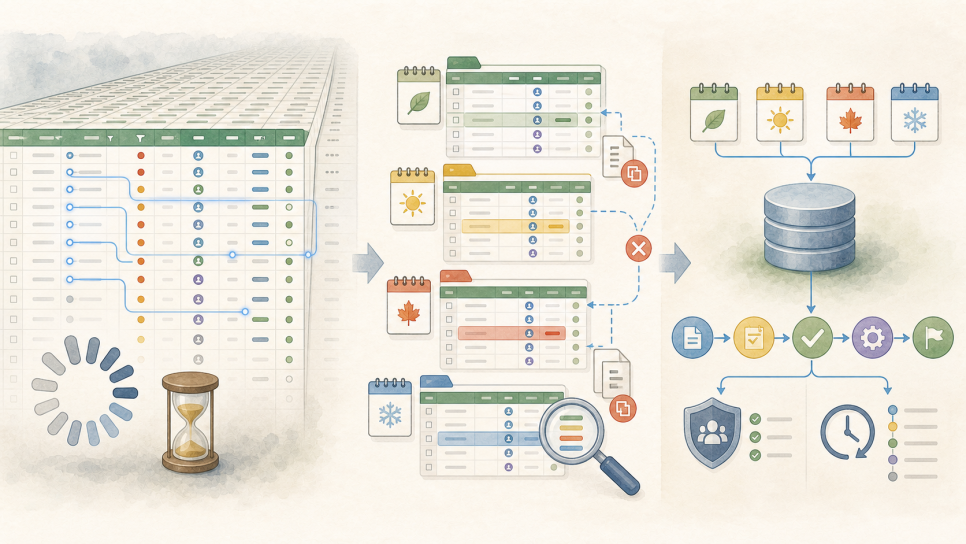
In particular, repeatedly splitting files by month or year to avoid performance problems is a sign that the tool is struggling with the workload.
Splitting files may improve speed immediately, but it becomes harder to identify the current file and calculate statistics across the full period. Duplicating information across files can also lead to missed updates.
The number 100,000 alone cannot determine whether to build a system.
But if several people enter, search, and update more than 100,000 rows every day, it is time to seriously consider a different way of storing data or a dedicated business system.
Things change when a spreadsheet starts controlling the workflow.
Excel and Google Sheets are strong at recording and calculating data.
But as work becomes more complex, storing the data is no longer enough.
Suppose a process follows these steps.
Intake → Review → Approval → Processing → Complete
At first, you can manage it with a “Status” column in a spreadsheet.
As the workload grows, you need to decide whether an unapproved item can move to processing, who may approve it, and where a rejected item should return.
In a spreadsheet, people have to remember and follow these rules.
The person responsible manually messages the next person, while a manager checks again for missed work. Incorrect statuses or skipped steps are often discovered only later.
A business system can enforce the defined sequence and permissions. It can prevent disallowed actions in advance and record who changed what and when for each business item.
Spreadsheets are good at holding data, but have limits when it comes to controlling workflow states, rules, and responsibilities.
When a spreadsheet starts managing the order in which people and departments work, beyond simply recording results, a dedicated system is worth considering.
Repeated problems like these call for a system review.
If several of the following problems keep occurring together, examine the limits of the current approach.
- The same information is entered repeatedly in multiple files or sheets.
- People frequently have to check which file or value is current.
- Someone must keep checking progress and notifying the next person.
- User-specific viewing and editing permissions and change history are difficult to manage.
- Formulas and scripts have become complex, break often, and are difficult even for their creator to change.
- Files are repeatedly split by month or year to avoid performance problems.
- Missing or incorrect entries affect sales, settlement, contracts, or customer service.
One or two problems do not mean you should immediately build a system.
Clarifying the process, adding a small AI-assisted automation, or connecting existing tools may be enough.
But if you keep adding checking sheets and auxiliary files to solve spreadsheet problems, it is time to reconsider.
You are compensating for the limitations of one spreadsheet with another.
If work stops when one person is away, or only the file’s creator understands its structure, operations depend too heavily on an individual employee’s abilities.
A well-used spreadsheet is the starting point for system design.
Deciding to build a dedicated system does not mean throwing away your existing Excel or Google Sheets files.
A spreadsheet used over a long period contains the real work.
It shows which fields matter, the order in which values are entered, which statistics are meaningful, and which exceptions occur.
The existing spreadsheet is an important source for designing the new system, not merely an old tool.
But you should not copy its screens and structure directly into an application.
As columns and auxiliary tables have been added over time, obsolete fields may have remained, or data with the same meaning may have acquired different names.
Before building the system, clarify the authoritative data, who enters and approves it, the normal workflow, and the exceptions that must be handled.
Automating a tangled process without improving it only makes the same complicated work repeat faster.
Look beyond development cost to the losses from not developing.
A dedicated system brings ongoing maintenance costs as well as development costs.
But not building a system also has continuing costs.
Time spent entering the same information again, checking which data is current, waiting for slow files, and redoing work because of bad data is all a cost.
Add settlement losses or delayed customer responses caused by errors, and the cost can become much greater.
Ultimately, the question is “Have the continuing losses from the current approach become greater than the cost of introducing and maintaining a system?”
If so, it is time to consider a dedicated system.
If, on the other hand, Excel or Google Sheets supports reliable operations and AI and small automations can reduce repetitive work, there is no reason to build a new application.
That is why it helps to consider the options in this order.
- Keep using the current tools.
- Use AI to build small automations.
- Connect existing tools.
- Build a system only for the problems that still remain.
Start by examining the files you use and the actual workflow, then identify what can stay, what can be automated, and what needs to be built separately.
A better starting point is to keep what works and build systems precisely for the problems existing tools cannot handle well.