
When I look at small business websites these days, I often wonder: does a site showing a business name, opening hours, services, a few photos, and contact details still have to be outsourced for hundreds of thousands, or sometimes millions, of Korean won?
An initial creation fee is one thing. But every time you want to change a sentence or a photo, you have to contact the supplier again and pay for the change. Meanwhile, the business owner does not know what to edit or where, even though it is their own website.
Coming from someone who has spent more than 25 years building software, this may sound as though I underestimate website development. In fact, I know very well how different a complex system is from a simple introduction page.
If there are no member accounts, no payments, and no stored customer information, the website is closer to a small sign on the internet than a business system. We have now reached a point where a business owner can try making that sign themselves with help from ChatGPT.
Once your business information and photos are ready, you can create the page through a few conversations with Codex in the ChatGPT desktop app, store the files in a GitHub account, and use Pages to get your first web address. A domain matching your business name can wait until you need it. A first-time user may get stuck once or twice, but publishing a first website within a day is quite achievable.
A small introductory website at the default address can run within GitHub Pages’ free allowance without a separate hosting fee.
An introduction site and a business system are different things
What I mean here is a small promotional website with a few pages: a site that explains what your company or shop does, what products and services it offers, where it is, when it opens, and how to get in touch. It can include links to contact you by phone or KakaoTalk.
This information does not change for each visitor. You only need to show prepared text and photos. HTML and CSS files are enough, with no separate server application or database.
But if the site accepts registrations, processes bookings and payments, or manages orders, inventory, and customer information, the situation changes. It becomes a business system. Someone must take responsibility for security, personal data protection, backups, and incident response.
AI does not take on that responsibility just because it writes the code.
The distinction is surprisingly simple: first decide whether the site only displays information or directly handles money and personal data.
GitHub Pages officially describes its purpose as static websites introducing individuals, organizations, and projects. This article uses a small page presenting basic business information as an example of that scope. With GitHub Free, the source repository must also be public, so include only files that may be published on the website.
GitHub Pages is not permitted as free hosting for running an online business, e-commerce, sites primarily facilitating commercial transactions, or SaaS. Operations primarily focused on completing sales or booking transactions are therefore outside this article’s scope. Check the GitHub Pages limits against your actual purpose.
Start with one screen introducing your business.
Create the first page with your own information, then focus on opening the published address on both your computer and your phone.
What the business owner needs to decide before asking ChatGPT
Ask ChatGPT to “make a stylish website,” and it will produce something that looks stylish. The problem is that it may say nothing about your own business.
The hardest part of a website is often deciding what to say, rather than coding it. You know that far better than AI. Start by writing down just the following.
- Your business name and a one-sentence introduction
- The three products or services you most want to show
- Your address, opening hours, days closed, and contact details
- Your preferred contact method: phone, email, or KakaoTalk
- Your logo and a few photos you took yourself or have the right to use
- The feeling you want, such as warm or trustworthy
- (Optional) The address of your existing Instagram account or blog
That is enough to begin. If you do not have a logo, display your business name as text. If photos are limited, start with two or three. Trying to make everything perfect before starting can keep a website from ever going live.
Be careful that AI does not invent plausible prices or services it does not know. There is no need to provide internal materials such as customer lists or contracts. Give it only information intended for the public website.
For this work, I recommend ChatGPT. You can create and revise background pictures and illustrations within the conversation, making it convenient to work on copy and images together.
The main tool is Codex, selected in the ChatGPT desktop app. Open the website folder on your own computer in the app, and it can create and edit copy, background illustrations, and HTML files there. Ordinary ChatGPT conversations on the web or mobile do not automatically read that folder. You can discuss wording in ChatGPT anywhere, but keeping actual file and preview work in the app’s Codex makes the distinction clearer.
Free accounts can also create images and attach files. If you create and revise many images and files, ChatGPT Plus offers more convenient higher usage limits. Pro is not essential for a small introductory website. Before paying, check the Go, Plus, and Pro pricing and included features shown in your own account.
Use photos you took yourself or have the right to use for your business, products, and actual work. AI images are better suited to a background near the top of the site or an illustration that sets a mood, where they do not stand in for facts.
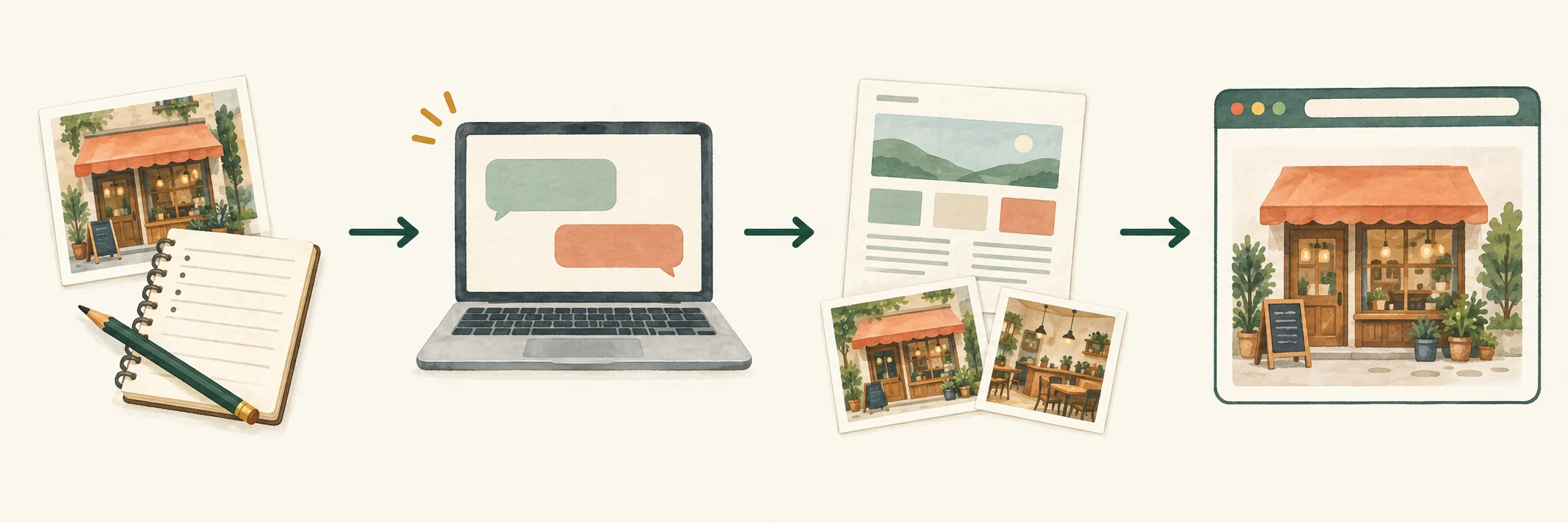
This is enough to ask ChatGPT
Replace the square-bracketed parts of the prompt below with your own business details. Asking to see the page’s order and wording before generating code reduces the chance of a wrong address or awkward advertising copy being turned into something that looks finished.
I run a [type of business].
I want a website introducing my business that looks good on both computers and phones.

Business name: [name]
What we do: [one-sentence introduction]
What I want to highlight: [products or services]
Address and opening hours: [details]
Contact method: [phone / email / KakaoTalk]
Desired feeling: [warm / calm / trustworthy]
Make the text and photos adjust naturally to the screen size.

Do not invent any information.
First show me the wording and the order of the content on the page.
Wait until I have checked it.
If you do not like the result, you do not need technical language. “The first sentence sounds too much like an advertisement; make it more straightforward.” “Make the text larger so older customers can read it easily.” “Show actual work photos before the menu.” Speak as you would when requesting changes from a website supplier.
Change one or two things at a time rather than everything at once, checking the preview on your computer after each change.
Ask for the files only after confirming that the wording and order are right.
Create the website files using the wording and images I have approved.
Make it look good on both computers and phones.
Open a preview on my computer.
Create the background illustration in the app
Once you are happy with the first screen’s wording and order, you can use the ChatGPT desktop app to create a small background illustration for the top of the site.
Create a warm background illustration for the top of a clothing repair shop website.
Include sewing tools and no text.
Place it at the top of the website and make it look good on both computers and phones.
Show it in the preview on my computer.
For further changes, ask something like, “Make it a little brighter.” Once you have chosen the image, ask Codex to use that file at the top of the site and reopen the browser preview. The principle remains the same: use your own photos for the actual business, products, and work.
You only need a separate ZIP backup of the latest project when handing the files to someone else. Once Codex is connected to GitHub, you do not need to repeatedly download, unpack, and re-upload ZIP files. Check your edits in the same website folder on your computer, then ask Codex to upload them to GitHub.
Publish on GitHub Pages to get a web address
Your website is now in a project on your computer. The simplest layout places index.html, images, and any static files such as CSS directly in the folder. The exact structure may vary depending on how ChatGPT builds it, but the overall shape is similar. If you need screen-by-screen guidance, open the step-by-step slides as a supplementary guide.
my-web-site/
├── index.html
└── images/
    ├── store.jpg
    └── product.jpg
Ask Codex in the ChatGPT desktop app to open a browser preview of this project. First check that photos appear, phone links work, and the address and opening hours are correct. This preview is still a page you are checking only on your own computer.
Follow this sequence once for the first publication.
- Install the ChatGPT desktop app, sign in, select Codex, and open the
my-web-sitefolder you created on your computer as a project. - Confirm the wording, then ask Codex to create the website files directly in that folder and open a preview on your computer.
- Create a GitHub account using your own email address, verify your email, and check your exact GitHub username. If it is
myname, the website address and repository name will bemyname.github.io. Even if your username includes uppercase letters, use lowercase for the repository name,yourusername.github.io. If a repository with that name already exists, do not overwrite it without checking its contents. - On GitHub Free, create a Public repository using your actual
yourusername.github.ioname. From the first upload to GitHub, anyone can view the source files, so include only files intended for the public website. ChatGPT Pro and GitHub Pro are different products; this process does not require a paid GitHub account. - Copy the new repository’s HTTPS address, give it to Codex, and ask it to connect the website folder to that repository.
- Before the first upload, ask Codex to check that Git and the GitHub connection are ready. If installation is needed, follow the official instructions for your operating system that Codex opens. Authenticate with GitHub through a browser sign-in.
- Review the file list and local preview Codex shows you. Only after approving the first publication should you ask it to commit the initial content to
mainand upload it to GitHub. An empty repository needs this first commit before you can select the Pages publishing source. - In the repository, go to Settings → Pages and choose Source: Deploy from a branch, branch
main, and folder/(root), then select Save. If these values are already set, simply verify them. Deployment can take up to 10 minutes; check its status in Actions and refresh after a short wait. Once deployment finishes, use Visit site to open the actualhttps://yourusername.github.ioaddress and check the text, photos, and contact links on both a computer and a phone.
To check the setup before the first upload, you can ask:
Check whether this computer has Git and the connection setup needed for the first upload to GitHub.
If anything is missing, open the official installation guide for my operating system and tell me only the next step.
Use browser sign-in for GitHub authentication. Do not ask me to put a password or personal access token in the chat.
A short follow-up request can prepare the files for publication from the beginning.
Using the wording and illustrations I approved, and the photos I took,
prepare index.html, images, and other files directly inside my-web-site.
Add any settings needed to open it directly on GitHub Pages.
Make it look good on computers and phones,
and open a preview on my computer.
Do not upload it to GitHub yet.
Both GitHub and GitHub Pages settings are managed in your own account. Signing in, making a repository public, and approving the first publication are not automatically done on your behalf. You need to look at the screen and make those choices yourself.
At this point, your first website is complete. https://yourusername.github.io is your default address. Open it on both your computer and your phone, and check that text and photos appear correctly and contact links open properly. That address alone is enough to publish and share your site with anyone. You do not need to buy a separate domain. You can add it to business listings or social profiles that accept a website link, and choose a custom domain only when you need a shorter address matching your business name.
If photos do not appear, first check the capitalization of their file names. Your computer may treat Images and images similarly, but a web server treats them as different names. Using a path relative to the current file, such as images/photo.jpg, reduces breakage when you publish somewhere else.
Updates get simpler after the first time
Next time, open the same project in the ChatGPT desktop app and tell Codex in Korean what you want to change. Ordinary ChatGPT conversations on the web or mobile do not automatically pick up these files, so make the actual changes in the app with the project open.
Starting next week, change the closing time to 7 p.m.
Show me a preview first. Do not update the live website until I have checked it.
Only after reviewing the preview and deciding it is correct should you say:
I have checked it. Update the live website and give me the completed address.Once the permissions and connection are set up, Codex commits the approved files to main, and GitHub Pages deploys the change automatically. Check the edited page on your computer first. Completion means more than a commit reaching the repository. Open the actual https://yourusername.github.io address or your connected domain on both a computer and a phone, and check the new opening hours, text, photos, and contact links.
This is the scope of this article.
Payments, registrations, personal data collection, and booking or order processing belong to a separate business system. Do not put passwords, API keys, customer information, or other private materials in the project or its public repository.
Connect a domain purchased from a registrar
Everything from here is optional. The https://yourusername.github.io address already lets you publish and share your site, so a custom domain is not essential. When you want a shorter address that matches your business name, you can buy one from a registrar such as Viaweb or Gabia and connect it. Here, you are buying only the domain; the website is already on GitHub Pages. You can decide after confirming that the default address works on both computers and phones.
For one-year new registrations of .co.kr and .kr checked in September 2026, the Viaweb public price list was lower than the Gabia public information, so this guide uses Viaweb as its example. Viaweb lists KRW 11,400 per year excluding VAT and states that renewals cost the same. Before paying, check the total shown on the payment screen and the renewal terms again.
- On the domain search and registration page, in the search field after
www., enter a name such asmy-shop, choose.co.kr, and select Search. - If your chosen name is marked Available, select that row and click Apply. If a sign-in page appears, register or sign in, then continue the application.
- Enter accurate registrant information and the registration period shown on the form. Pay only after checking the full domain name, period, final amount including VAT, and renewal terms.
- After payment, check that the domain appears in your domain management page. Viaweb’s public terms state that a name is not reserved before payment and that registration is completed after the required application information and registration fee are received.
The fields and button names on the post-registration forms and payment screens may vary by account type and date, so this article does not guess at them.
First, from your GitHub profile picture, go to Settings → Pages → Add a domain and add the base domain you purchased. Enter the actual TXT host and value shown by GitHub in Viaweb DNS, then complete Verify. Keep the TXT record so ownership verification remains valid. This is domain ownership verification, separate from the repository’s Settings.
Next, in your website repository, go to Settings → Pages → Custom domain, enter www.example.com, and select Save. If the domain uses Viaweb’s authoritative name servers, the publicly shown menu route is Domain → Additional services → Advanced name server management. If another provider manages your DNS, configure it there. Do not replace existing email MX and TXT records as a group.
www is connected as shown below. Use your actual GitHub username in the value, without https:// or a path after the hostname.
Type: CNAME
Host: www
Value: yourusername.github.io
DNS changes may take time to propagate. Check that DNS verification has completed in GitHub Pages, and enable Enforce HTTPS only once it becomes available. Check that https://www.example.com opens without warnings on both a computer and a phone. Saving Custom domain in the repository Settings may create a remote change on main that adds a CNAME file. The next time you ask Codex to edit the site, have it first pull the latest changes from GitHub, preserve CNAME, then make the edits and upload them to GitHub.
Make the site easy for search and AI to read
SEO means organizing your site so people can find your business in search results. You can think of GEO as helping generative AI understand and introduce accurate information about your business. Both start with your correct name, services, location, contact details, readable titles and descriptions, real photos, and frequently asked questions, rather than unfamiliar tricks.
Google’s guidance likewise treats useful, factual pages for people as the foundation of SEO and AI search. You do not have to create a special AI file or llms.txt. Appearing in search also does not guarantee a ranking or an AI mention.
Review and improve SEO and GEO for my public website [https://actual-address].
Use only the real page and facts I have supplied. Do not invent reviews, prices, experience, or promises.
Check that text, photos, and contact buttons are easy to read on computers and phones.
Make the business name, services, address, opening hours, contact methods, and real FAQ clear.
Add any needed sitemap, robots, canonical, and Business structured data appropriate to the business type.
Tell me if search crawling is blocked. Keep training-related settings such as GPTBot exactly as they are.
First show a preview of the changes. Do not update the live website until I have checked it.
Check the latest official guidance for Google Search Console and Naver Search Advisor, and guide me one step at a time.
If I get stuck, look at an error screen with personal information hidden and tell me only the next step.
If you intend to connect a domain, it is less confusing to settle the final address before registering with search engines. Without a custom domain, you can register the actual https://yourusername.github.io address as it is. If the address changes later, register a new property and sitemap for the new address.
- Google Search Console: choose Add property → URL prefix and enter the full actual
https://address. Copy the HTML tag provided in the instructions. - Ask Codex, “Without changing this tag, place it in the root-level
index.htmlfile’shead.” After the preview, your approval, the commit tomain, and the actual GitHub Pages deployment, click Verify in Search Console. Do not delete the verification tag. - Check that
sitemap.xmlopens at the live address and submit it under Sitemaps. You can submit your home page through URL inspection → Test live URL → Request indexing. - In Search Console, under Settings → Search generative AI, check that site links and content are included. If it is already set to Include, leave it there. This setting concerns generative features in Google Search; it does not govern every AI service or all training uses.
- Naver Search Advisor: go to Webmaster tools → Register site and enter the same live address. Put its HTML tag in the
head, deploy, and then verify ownership. - Request → Submit sitemap: enter the same host’s
sitemap.xmladdress, then use Request → Crawl web page to request the home page. Afterwards, check the address under Reports → URL inspection. Keep this verification tag after verification, too.
What to do yourself, and where to get help
If the site involves bookings, payments, registrations, or personal data processing, or if search visibility and brand image strongly affect revenue, it is better to involve a professional. For some owners, a day spent with customers and on sales is worth more than a day spent building the site themselves.
I am not arguing against paying professionals. I am asking whether it is still necessary to depend on someone else every time you change your business introduction or contact details.
Your GitHub account and yourusername.github.io repository are both your own file storage and the place where your live website is configured. You should check for yourself what goes into the public repository and how Pages is configured.

Whether you build it yourself or hire someone, it is best to own the GitHub account and yourusername.github.io repository. GitHub holds the source files and change history, while GitHub Pages settings manage the live address. You need to know where the finished files are and what to edit. Your website should not disappear just because you change suppliers.
Your first website does not have to be impressive. If visitors can understand what the business is, whether it offers what they need, and how to get in touch, it is already doing its job. Improve what is missing gradually as you hear customers’ questions.
A small website used to be a project you had to entrust to someone with technical knowledge. Now, the person who knows the business best can create its first form with AI.
Being able to edit your own business’s story and publish it at an address you own is, to me, a bigger change than the reduction in production cost.
Official references
- ChatGPT desktop app: install, sign in, open a folder, and select Codex
- ChatGPT Codex local environments and Git work
- Create and edit images in ChatGPT
- About ChatGPT Plus
- About ChatGPT Free
- What is GitHub Pages? (checked September 10, 2026)
- Create a GitHub Pages site (checked September 10, 2026)
- Configure the GitHub Pages publishing source (checked September 10, 2026)
- Verify a custom domain for GitHub Pages (checked September 10, 2026)
- Manage a custom domain for GitHub Pages (checked September 10, 2026)
- Secure GitHub Pages with HTTPS (checked September 10, 2026)
- GitHub Pages limits (checked September 10, 2026)
- Viaweb domain search and registration
- Viaweb domain pricing
- Gabia public information for .co.kr and .kr
- Viaweb domain registration terms
- Viaweb technical guide: advanced name server management
- Google guidance on AI features and your website
- Google SEO Starter Guide
- Get started with Google Search Console
- Google Search Console: verify your site
- Google Search Console: generative AI search settings
- Google Search Console: submit a sitemap
- Google Search Console: URL inspection
- Naver Search Advisor: register a site
- Naver Search Advisor: submit a sitemap
- Naver Search Advisor: request a web page crawl
- Naver Search Advisor: URL inspection
GitHub Pages references checked 2026.09.10 · Further reading